
Create a Batch Action - Upload Offer Certificate Codes
Offer Certificate Codes are an optional feature within Offers that allow you to send unique, single-use codes to your Members that they can then redeem for a prize or a discount. The platform provides several means of managing these certificate codes, and keeping track of how they are generated, distributed, and redeemed.
The Batch Actions screen lets you upload certificate codes into a selected Offer by importing a comma-separated values (CSV) file that contains a header row and the following column:
-
code: The certificate code value
To create a Batch Action for uploading Offer Certificate Codes:
-
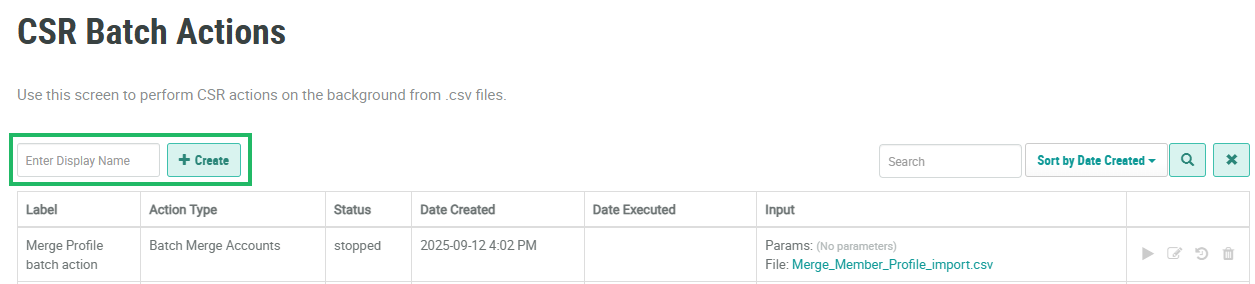
Select Members from the top navigation bar, then select CSR > Batch Actions from the side navigation menu. The Batch Actions screen is displayed.
-
In the Enter Display Name field, enter a name for the new Batch Action.
-
Click Create. The Edit CSR Batch Actions pop-up window is displayed.
-
The Display Name field is populated with the name you entered above. Optionally edit this name.
-
Optionally, in the Description field, enter a description of this Batch Action.
-
From the Action Type drop-down menu, select Emailed Coupon Importer.
-
Next to Input File, click Choose File. Browse to the CSV file on your local PC and click Open.
-
From the Offer Coupon drop-down menu, selected the desired Offer into which you want to import Offer Certificate Codes. This menu is populated with all Offers of type Coupon, that have a status of Published.
-
Click Save.
For more information on how to execute the Batch Action, please see Execute a Batch Action.
